Skip to content

Quick start

This page does one thing: get your first interface running. If you have not added the dependencies to your own Cargo.toml yet, start with Installation and feature flags. If you are learning inside this repository, you can run the example directly.
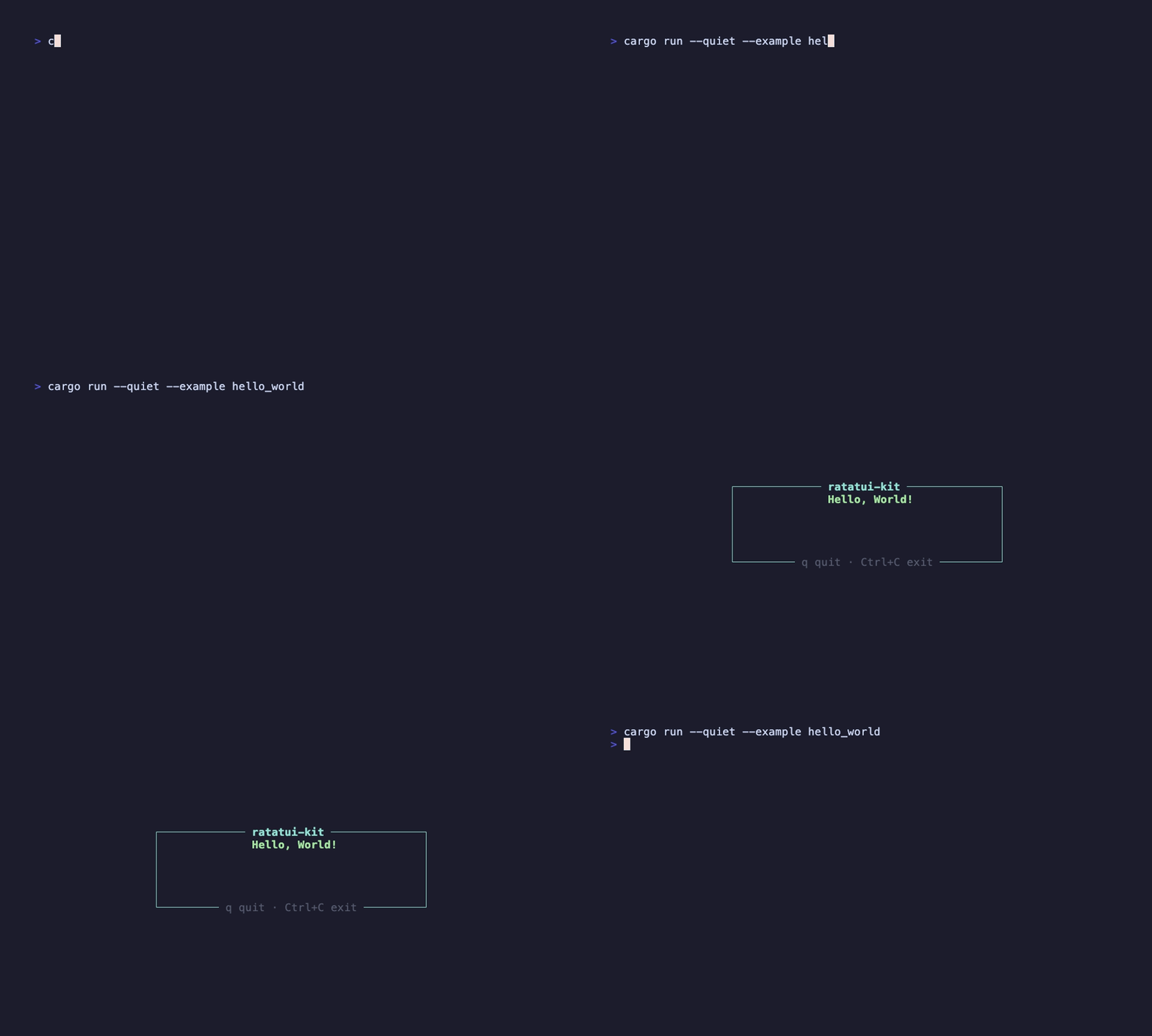
hello world demo

This recording is generated by docs/tapes/hello-world.tape and runs examples/start/hello_world.rs from the repository.

use ratatui_kit::{
    crossterm::event::{Event, KeyCode, KeyEventKind},
    prelude::*,
    ratatui::{
        layout::{Constraint, Direction, Flex},
        style::{Style, Stylize},
        text::Line,
    },
};

#[tokio::main]
async fn main() {
    element!(HelloWorld)
        .fullscreen()
        .await
        .expect("Failed to run the application");
}

#[component]
fn HelloWorld(mut hooks: Hooks) -> impl Into<AnyElement<'static>> {
    let mut exit = hooks.use_exit();

    hooks.use_event_handler(EventScope::Current, EventPriority::Normal, move |event| {
        let Event::Key(key) = event else {
            return EventResult::Ignored;
        };
        if key.kind == KeyEventKind::Press
            && matches!(key.code, KeyCode::Char('q') | KeyCode::Char('Q'))
        {
            exit();
            return EventResult::Consumed;
        }

        EventResult::Ignored
    });

    element!(
        Center(
            width: Constraint::Length(42),
            height: Constraint::Length(7),
        ) {
            Border(
                flex_direction: Direction::Vertical,
                justify_content: Flex::Center,
                border_style: Style::new().cyan(),
                top_title: Line::from(" ratatui-kit ").cyan().bold().centered(),
                bottom_title: Line::from(" q quit · Ctrl+C exit ").dark_gray().centered(),
            ) {
                Text(text: Line::from("Hello, World!").green().bold().centered())
            }
        }
    )
}

Run it:

cargo run --example hello_world

Most applications can use .fullscreen() directly:

#[tokio::main]
async fn main() {
    element!(HelloWorld)
        .fullscreen()
        .await
        .expect("Failed to run the application");
}

It creates the default CrossTerminal, enters Ratatui’s full-screen terminal mode, and restores the terminal after the render loop exits. Exit can come from Ctrl+C, or from an event handler that calls use_exit() as shown above.

If you need custom Ratatui TerminalOptions, use .render_loop(options):

use ratatui_kit::ratatui::TerminalOptions;

let options = TerminalOptions::default();
element!(HelloWorld).render_loop(options).await?;

Unless you are embedding a terminal, using a test backend, or working with a special viewport, start with .fullscreen(). Internally, the framework’s Terminal is only the raw event source. Keyboard and mouse events are not broadcast to all components; after each render, they are dispatched through the input layer system.

For now, remember four things:

  • element!(HelloWorld) creates the root declaration.
  • #[component] connects the function component to the runtime.
  • use_event_handler registers keyboard input and handles q to exit.
  • element! describes this frame’s UI; real component instances are preserved across frames by the runtime.

Continue to the mental model to learn how those names cooperate. If you would rather write something interactive immediately, jump to the first moving example: the counter tutorial.